

In this article
How to Fix “Storage Almost Full” on Windows 11 Without Deleting Personal Files
Seeing the “Storage Almost Full” warning on Windows 11 can be frustrating, especially when your computer contains important photos, videos, documents, and other personal files that you do not want to delete.
The good news is that you can often free up storage space on Windows 11 without deleting your personal files. Windows includes built-in tools that can identify temporary files, unused data, and other items that are taking up valuable disk space.
In this guide, you will learn how to fix the Windows 11 storage almost full problem safely, recover free disk space, and reduce the chances of receiving the warning again.
Why Does Windows 11 Say Storage Is Almost Full?
The “Storage Almost Full” warning usually appears when your Windows drive, commonly the C: drive, has very little free space remaining.
Your storage can gradually become full because of:
Temporary Windows files
Windows update files
Recycle Bin contents
Cached application data
Large unused applications
Previous Windows installation files
Cloud files stored locally
Large downloads
System and reserved files
When free storage becomes very low, you may also experience slower performance or problems installing Windows updates. Microsoft recommends freeing up disk space when Windows reports low storage.
The important point is that you do not necessarily need to delete your personal photos, videos, documents, or other important files to solve the problem.
Step 1: Check What Is Using Your Storage
Before deleting anything, find out what is consuming your disk space.
On Windows 11:
Open Settings.
Select System.
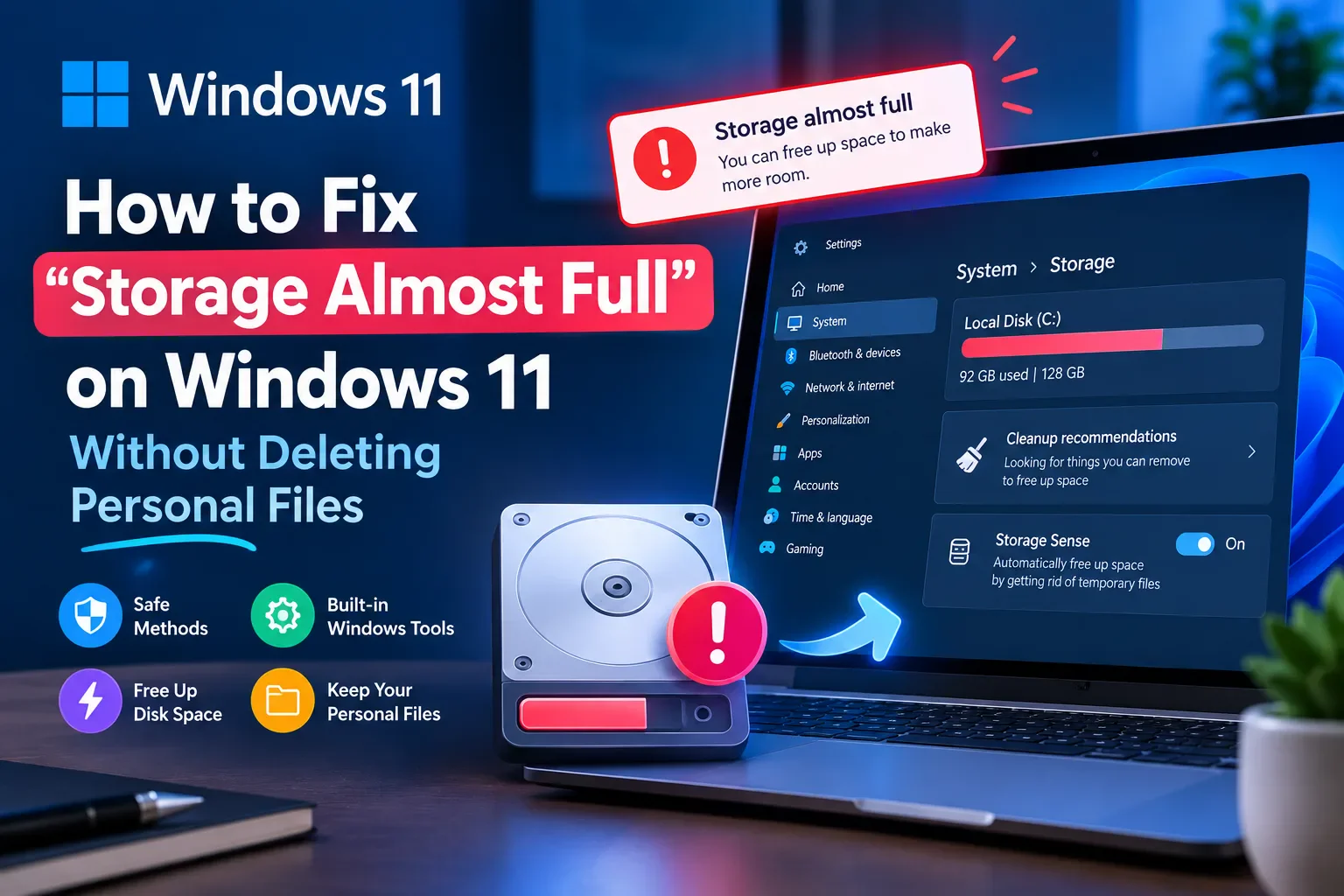
Click Storage.
Wait for Windows to calculate your storage usage.
Windows will organize your storage into categories such as installed apps, temporary files, system files, and other data.
This is useful because it lets you identify the biggest storage categories before making any changes.
Step 2: Use Windows 11 Cleanup Recommendations
One of the safest ways to free up storage without manually searching through your personal files is Cleanup recommendations.
Go to:
Settings → System → Storage → Cleanup recommendations
Windows can show categories such as:
Temporary files
Large or unused files
Files synchronized with the cloud
Unused applications
You can review the recommendations before removing anything and see how much space each category could free.
This makes Cleanup recommendations a good starting point if your goal is to fix Storage Almost Full on Windows 11 without deleting personal files.
Step 3: Turn On Storage Sense
Windows 11 includes a feature called Storage Sense that can automatically clean unnecessary files.
To enable it:
Open Settings.
Go to System.
Select Storage.
Turn Storage Sense on.
Storage Sense can automatically remove items Windows considers unnecessary, including temporary files and certain Recycle Bin contents.
You can also configure how frequently Storage Sense runs and what types of files it manages.
Does Storage Sense Delete Personal Files?
You should always review its settings before relying on automatic cleanup.
According to Microsoft, the default Storage Sense behavior does not manage your Downloads folder or cloud content unless you specifically configure it to do so.
That makes it important to check the available options instead of assuming every folder will be cleaned automatically.
Step 4: Remove Temporary Files
Temporary files can occupy a significant amount of storage over time.
To review them:
Settings → System → Storage → Temporary files
Windows will display different categories of temporary and system-related files.
Review the list carefully and select the items you are comfortable removing.
Temporary files are different from your normal personal documents, photos, and videos, so cleaning unnecessary temporary data can recover space without deleting the files you actually want to keep.
Step 5: Empty the Recycle Bin
Files inside the Recycle Bin can continue consuming disk space.
If you have already deleted files in the past, check your Recycle Bin.
Right-click the Recycle Bin and select:
Empty Recycle Bin
Only do this after checking that there is nothing inside that you still need.
If you want to avoid deleting personal files entirely, you can skip this step and focus on temporary files and other unnecessary system data instead.
Step 6: Remove Previous Windows Installation Files
If you recently upgraded Windows, your computer may contain files from the previous Windows installation.
These files can take up a considerable amount of storage.
On Windows 11, Microsoft provides this option through:
Settings → System → Storage → Cleanup recommendations
If Previous Windows installation(s) appears, you can review its size before choosing to clean it up.
However, there is an important warning: removing the previous Windows installation can remove the ability to return to the previous Windows version.
Therefore, do not remove these files if you still need the rollback option.
Step 7: Find Large Files Instead of Deleting Everything
If Windows still reports low storage, do not start randomly deleting files.
Instead, identify which folders contain the largest files.
Open File Explorer and check common locations such as:
Downloads
Videos
Pictures
Documents
Desktop
Windows allows you to sort files by size, making it easier to identify unusually large files.
If you find a large personal file that you want to keep, you do not necessarily have to delete it.
You can move it to an external USB drive, another storage device, or another drive with available space. Microsoft specifically recommends moving large personal files to external storage when appropriate.
Step 8: Move Personal Files Instead of Deleting Them
One of the best solutions for people who have many photos, videos, or documents is to move files instead of deleting them.
For example, if your C: drive is almost full but you have another drive with plenty of free space, you can move large files there.
You can also use an external storage device such as a USB drive or SD card.
This gives you more free space while allowing you to keep your important personal files.
Step 9: Check Large or Unused Applications
Applications and games can sometimes consume much more storage than expected.
Go to:
Settings → Apps → Installed apps
Look through the installed applications and identify programs you no longer use.
If an application is unnecessary, uninstalling it can free up storage without affecting your personal photos and documents.
Be careful with applications you do not recognize. Do not uninstall system components simply because their names look unfamiliar.
Step 10: Use OneDrive Files On-Demand
If you use OneDrive, some files may be stored locally on your computer even though you primarily use them through the cloud.
Windows supports OneDrive Files On-Demand, which can help reduce the amount of local disk space used by cloud files.
Microsoft explains that Files On-Demand can keep smaller placeholder files on the computer while the full files remain in the cloud.
This can be particularly useful if your computer has a relatively small SSD.
What If Windows Storage Is Still Almost Full?
If you have completed the normal cleanup steps and Windows still shows almost no free space, check the storage categories again.
Go to:
Settings → System → Storage
Look for categories that are unusually large.
You may discover that the problem is caused by:
Installed applications
Temporary files
System files
Cloud files
Large personal files
Previous Windows installation files
Windows provides a detailed storage view specifically for identifying how disk space is being used.
What You Should NOT Delete Randomly
When trying to fix a full Windows 11 drive, avoid randomly deleting folders from the Windows installation directory.
Do not manually remove system files simply because they look large or unfamiliar.
Instead, use Windows' built-in Storage, Storage Sense, Cleanup recommendations, and Disk Cleanup tools.
These tools are designed to help you identify files that can be removed or managed.
Can Low Storage Make Windows 11 Slow?
Low free disk space can contribute to performance problems and can also make it difficult to install Windows updates.
Microsoft recommends freeing up disk space when the system is running low on storage.
However, slow performance can have many other causes, so freeing storage is only one troubleshooting step.
How Much Free Space Should You Keep?
There is no single amount of free space that is ideal for every Windows 11 computer because it depends on the size of your drive and how you use your PC.
Instead of waiting until Windows displays a critical storage warning, it is better to keep a reasonable amount of free space available for Windows updates, temporary files, applications, and normal system operation.
If your computer constantly runs out of storage, you may eventually need a larger SSD or an additional storage device.
Frequently Asked Questions
How do I fix Storage Almost Full on Windows 11?
Start by opening Settings → System → Storage. Check which categories are using the most space, then use Cleanup recommendations, Temporary files, and Storage Sense to remove unnecessary data.
How can I free up Windows 11 storage without deleting personal files?
Use Windows cleanup tools to remove unnecessary temporary and system-related files. You can also uninstall unused applications or move large personal files to another drive instead of deleting them.
Does Storage Sense delete my personal files?
Storage Sense has configurable settings. Microsoft states that Downloads and cloud content are not managed by default unless you configure Storage Sense to do so.
Why is my C drive full even though I don't have many personal files?
Your storage may be occupied by applications, temporary files, Windows update data, system files, cached data, or other categories. Check Settings → System → Storage to see the breakdown.
Can I move files instead of deleting them?
Yes. Large photos, videos, documents, and other personal files can be moved to another internal drive or external storage device if you want to keep them.
What should I do if Windows needs more space for an update?
Use Storage Sense, Cleanup recommendations, or other Windows storage tools to free space. Microsoft also documents using external storage when additional space is required for a Windows update.
Final Thoughts
If Windows 11 says “Storage Almost Full,” you do not have to immediately start deleting your photos, videos, and important documents.
The safest approach is to first check Settings → System → Storage, identify what is consuming the most space, and then use Cleanup recommendations and Storage Sense to remove unnecessary data.
If your personal files are responsible for most of the storage usage, consider moving them to another drive or external storage rather than deleting them permanently.
These simple steps can help you free up space on Windows 11, fix the Storage Almost Full warning, and keep your personal files.
Windows 11 storage
Storage Almost Full
Free up disk space
Storage Sense
Windows cleanup
Low disk space
C drive full
Windows 11 tips
Disk cleanup
Free storage space
Keep up with Social media trends
Choose site notifications, email, or both. Guests can subscribe by email without an account.
Report this article
Tell our review team about a problem with this content. Your details will not be shown to the author or other readers.
Your report could not be sent. Please try again later.
Sign in to report an article
Discussion
comments (0)
Share a perspective. Start a thoughtful conversation.
please login to be able to comment